Connector Quick Start
Start Connector
Unpack the distribution and run the start script located in the installation bin directory.
LINUX
./connector
WINDOWS
./connector.bat
Login to Connector
Once the Connector has started, navigate to the Admin UI and login with the default username and password, admin/admin:
Configure Connector
Follow the description and instruction in the Basic Configuration Menu to configure the mandatory settings.
HCL Connections Configuration
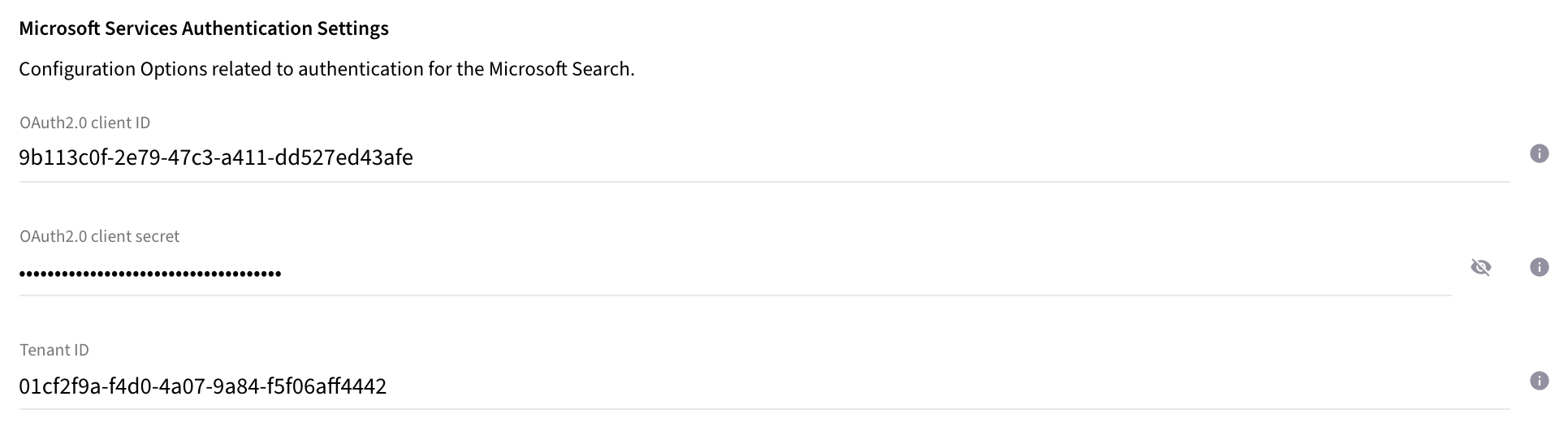
To configure the HCL Connections Agent, you need to provide the following essential settings:
Technical User Credentials
Configuration for the technical user that will connect to HCL Connections.
| Name | Property Key | Description |
|---|---|---|
Technical User Account |
|
Username of the technical user (e.g., |
Technical User Password |
|
Password of the technical user. Use the password encryption tool to encrypt. |
Connection Settings
Basic connection parameters to reach your HCL Connections instance.
| Name | Property Key | Description |
|---|---|---|
Connection URL |
|
The URL to your HCL Connections server (e.g., |
Connection Public URL |
|
The optional, publicly accessible URL / client access point for HCL Connections - if different from the potentially internal server URL. |
Full Configuration Reference
For a complete list of all available configuration properties including filter settings, profile-based aliasing, and advanced options, refer to the Configuration section.

Upload License
-
Contact Raytion and obtain a license for your connector
-
Login to the Admin UI
-
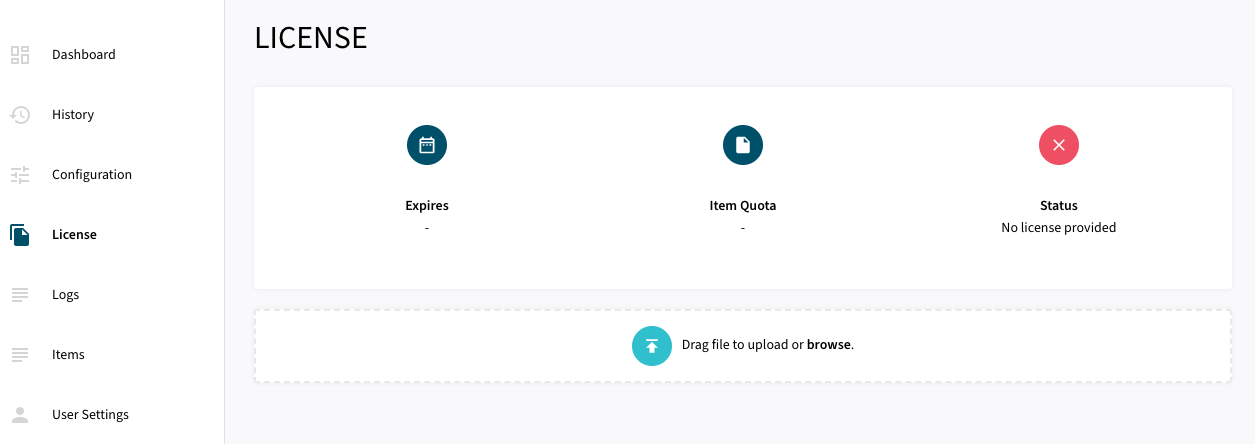
Select License in the menu:
-
Upload the license file by browsing for the file or simply dragging a dropping the license onto the license page
-
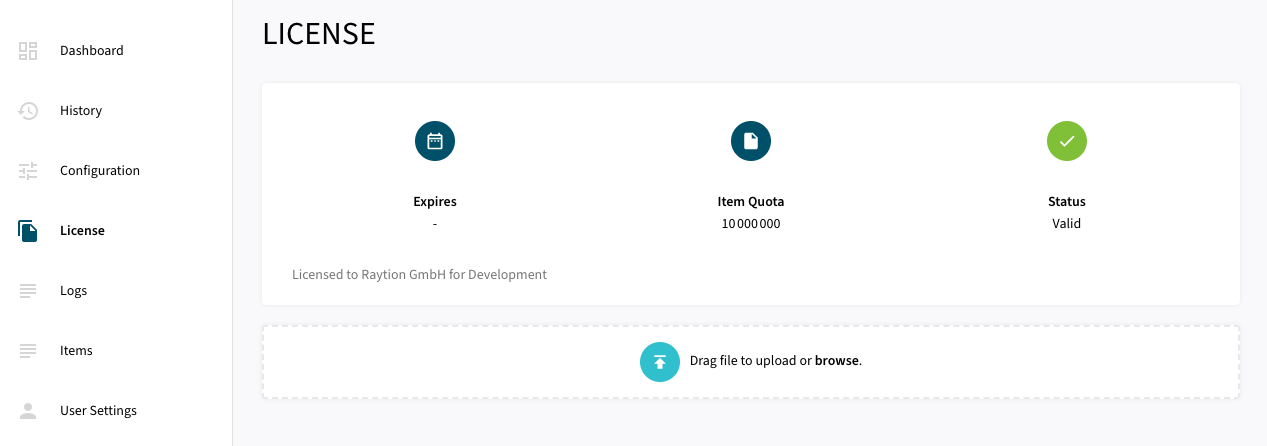
The Status of the license will be displayed as valid, and the expiration and item quota will also be displayed:
Synchronizing Data
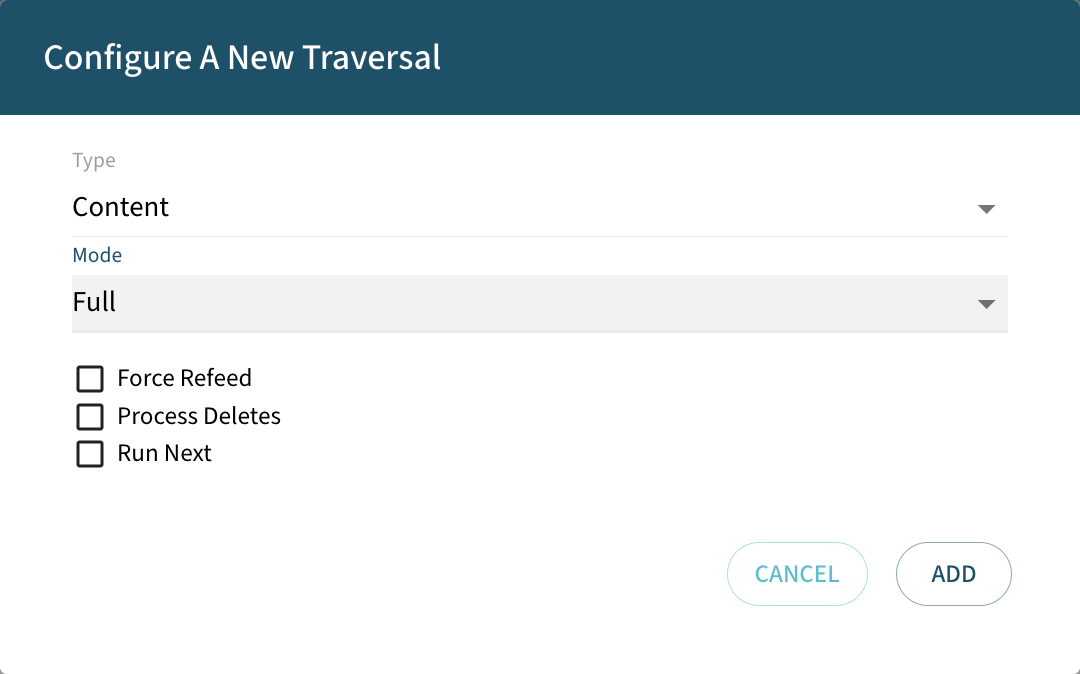
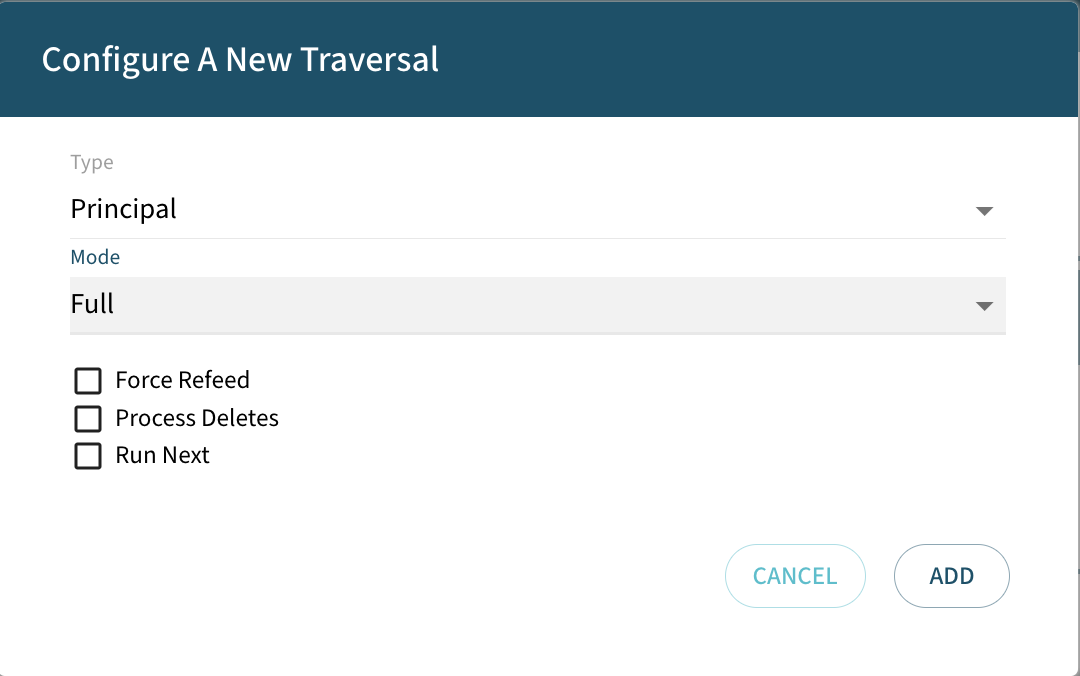
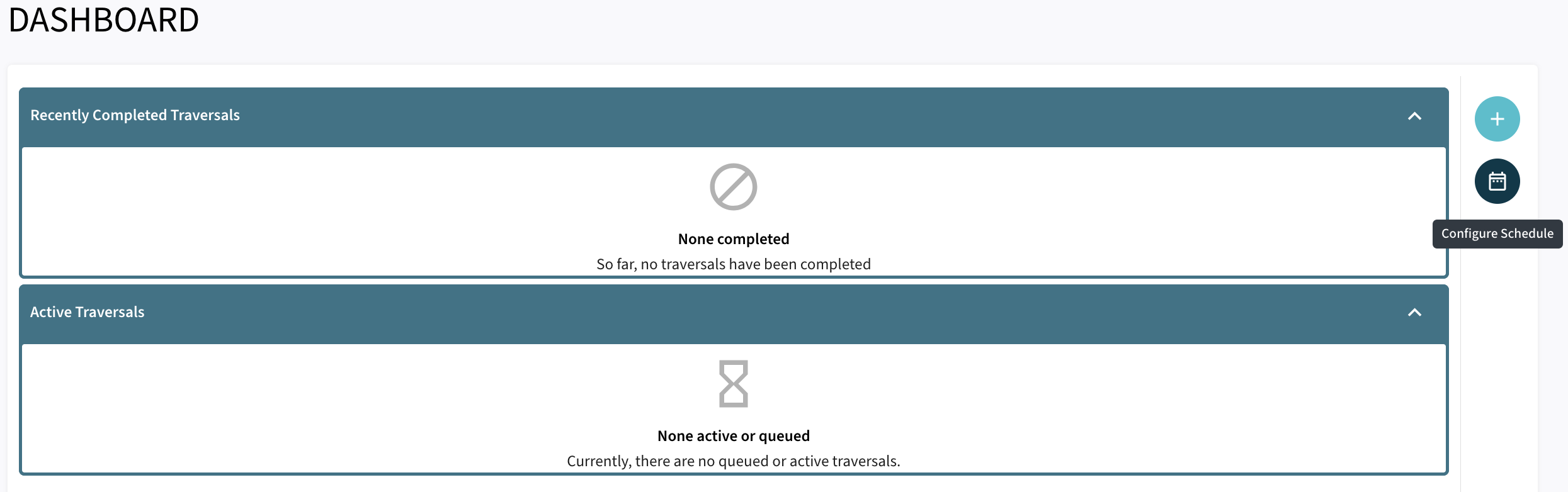
Once the connector is configured and the license uploaded, you can start synchronizing data using the traversal feature in the dashboard.
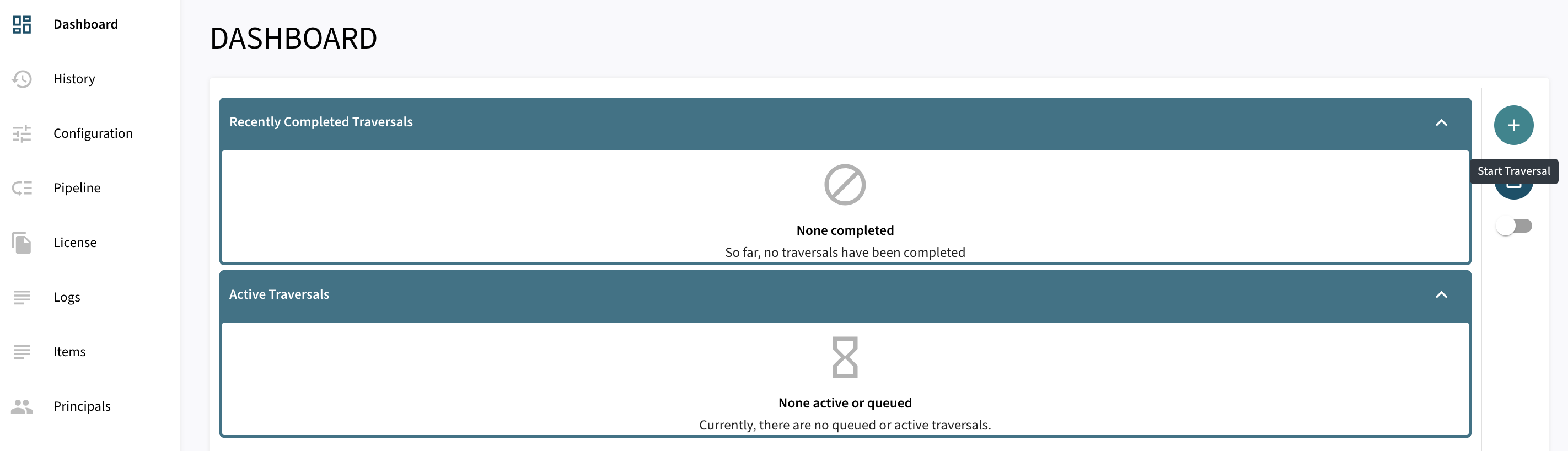
There are 3 options for Synchronizing:
-
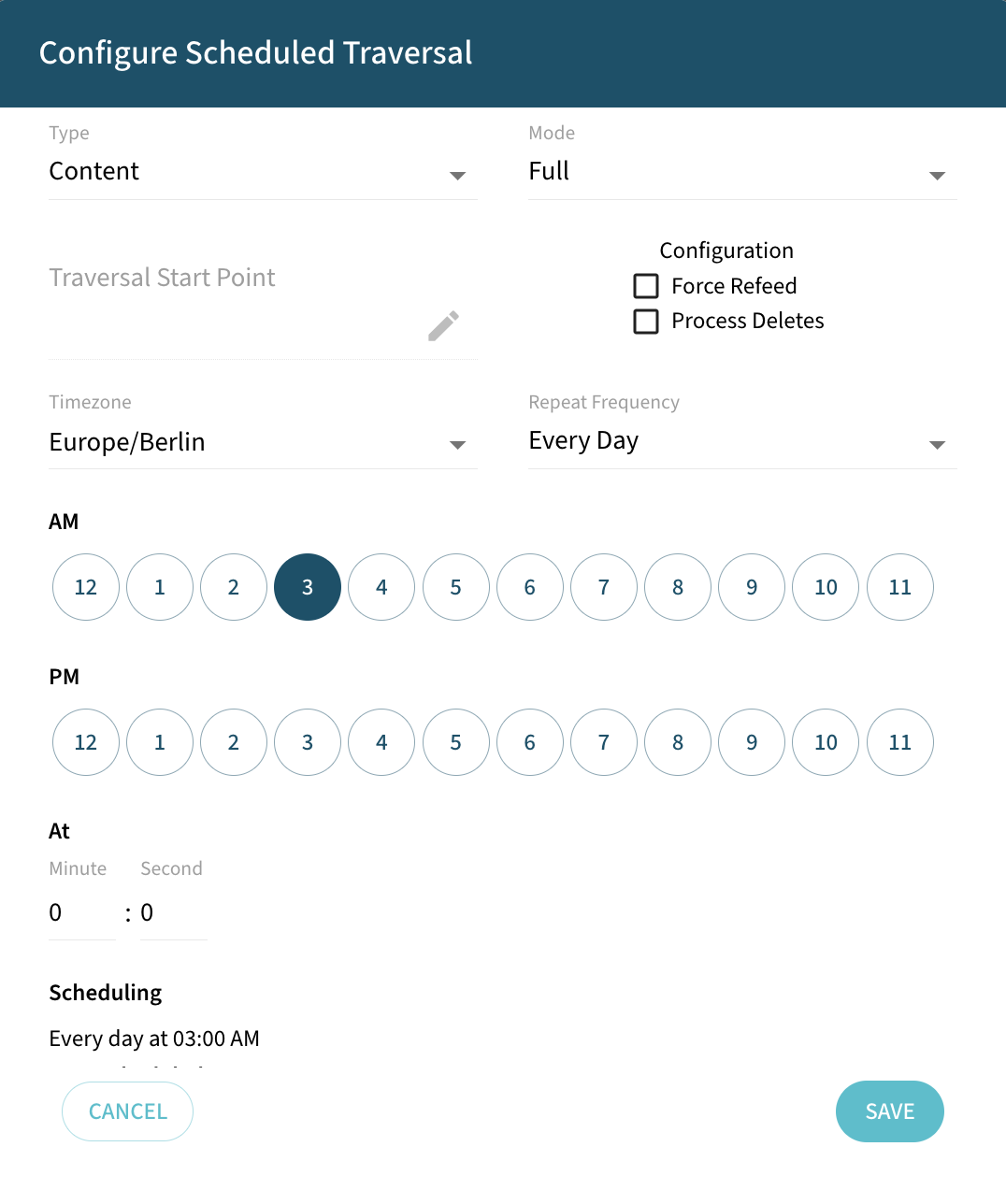
Force Refeed Toggles if previously discovered traversal items that haven’t changed should be fed to the search engine.
-
Process Deletes Toggles if deletions should be fed to the search engine.
-
Run Next The traversal will be prioritized over other traversals without this flag in the queue.
-
Automated Change Processing can be enabled to automatically process certain live updates from HCL Connections to Microsoft Search.